How to Use

Simple steps to set up and start using PairHint for your calls and meetings.

1. Attach your Document to provide context.

PairHint extracts your experience to personalize AI suggestions and answers based on your background.

2. Start the session and join your meeting.

Launch the app overlay. It will hover transparently over your video call window (Zoom, Teams, Meet).

3. Get real-time guidance as questions are asked.

The app automatically detects questions and displays solutions, complexity analysis, and explanations instantly.

Detailed Feature Guide

Master every capability of PairHint to maximize your call performance.

1. Personal Context & Document Setup

Attach your Document (PDF) and define your Personal Presentation in settings. PairHint uses this to formulate answers aligned with your actual experience.

2. Dual Audio & STT Configuration

Select your Microphone for candidate speech and System Loopback / Meeting Audio for speaker speech. Set STT language (EN, FR, ES, DE, IT) for precise transcriptions.

3. Live AI & Solution Customization

Questions are automatically recognized from live speech. The AI generates structured solutions including key talking points and explanations.

4. Screen Capture & Visual OCR

Use auto-capture or shortcut triggers to capture problem statements or diagrams. PairHint reads the screen via OCR to analyze complex visual prompts.

5. Floating Overlay Mode: Transparency & Top-Level

PairHint stays on top of all windows. You can adjust the opacity to make it subtle or use 'Click-Through' mode to interact with windows behind the overlay.

6. Follow-ups & Answer Expansion

When speakers ask follow-up questions, use the 'Extend' feature to generate deeper explanations or alternative approaches.

7. Session Export & History Review

All questions, full transcripts, and AI suggestions are saved in your local session history for post-call review and practice.

8. Multi-Solution Presentation

For technical tasks, PairHint presents several implementation strategies. Switch between Optimal, Alternative, and Brute Force solutions.

9. Global Hotkeys & Automation

Set custom triggers for manual captures, AI refresh, or overlay mode. Toggle auto-capture at set intervals.

macOS First Launch Setup

How to Open PairHint on macOS (Bypass Unidentified Developer Alert)

When opening PairHint on macOS for the first time, Apple Gatekeeper may display a security alert stating "PairHint cannot be opened because it is from an unidentified developer". Follow these quick steps to grant permission:

  1. Click OK on the initial alert: Dismiss the initial Gatekeeper warning dialog.
  2. Open System Settings: Click the Apple menu () in the top-left corner of your screen and select System Settings.
  3. Navigate to Privacy & Security: Scroll down the left sidebar and click Privacy & Security.
  4. Click 'Open Anyway': Scroll down to the Security section. You will see a notice saying "PairHint was blocked from use because it is not from an identified developer". Click Open Anyway.
  5. Confirm Open: Enter your Mac administrator password or Touch ID and click Open to launch PairHint.
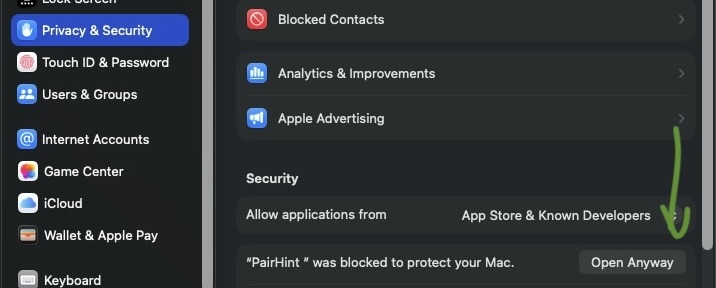
macOS System Settings Privacy and Security Open Anyway PairHint